Payments via T-Pay
You can accept payments via T-Pay, including:
Payments made via T-Pay are refunded in a standard way.
The payer authentication is performed through logging into the T-Bank app. Customers do not have to enter card details to make payments.
You can accept T-Pay payments in two ways:
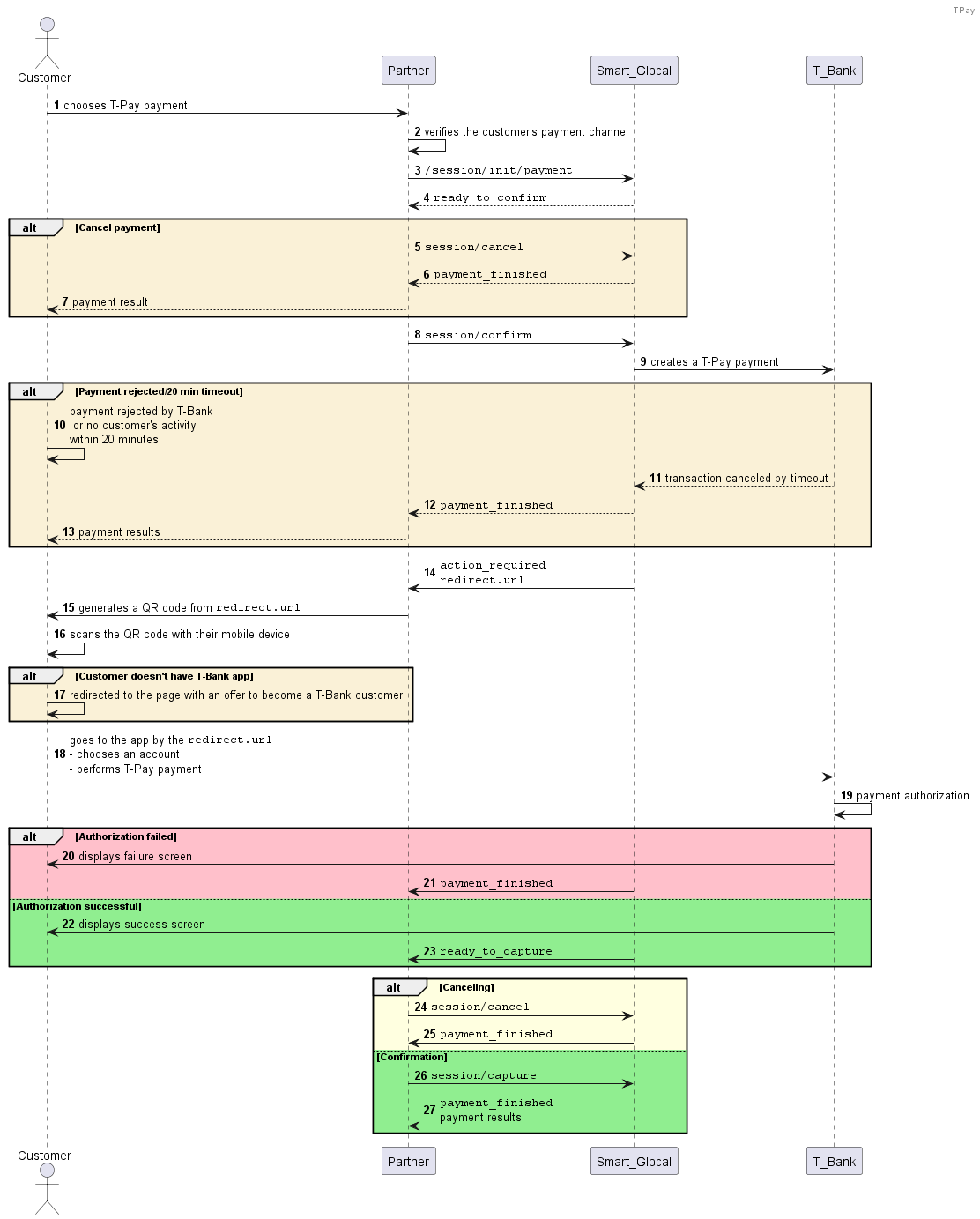
- with a QR code, which works for payments made from a desktop browser (generate and display the QR code on your side)
- with a URL to the T-Bank application, which works for payments made from a mobile device
After being redirected by the URL, the payer will have 20 minutes to complete the payment. Otherwise, the session terminates with an error.
You can make payments with automatic payment session confirmation.
Payment scenario
The payment scenario depends on the customer's payment channel: mobile device (mobile) or desktop browser (desktop). The customer device properties in the request define the format of the payment link in the action_required webhook.
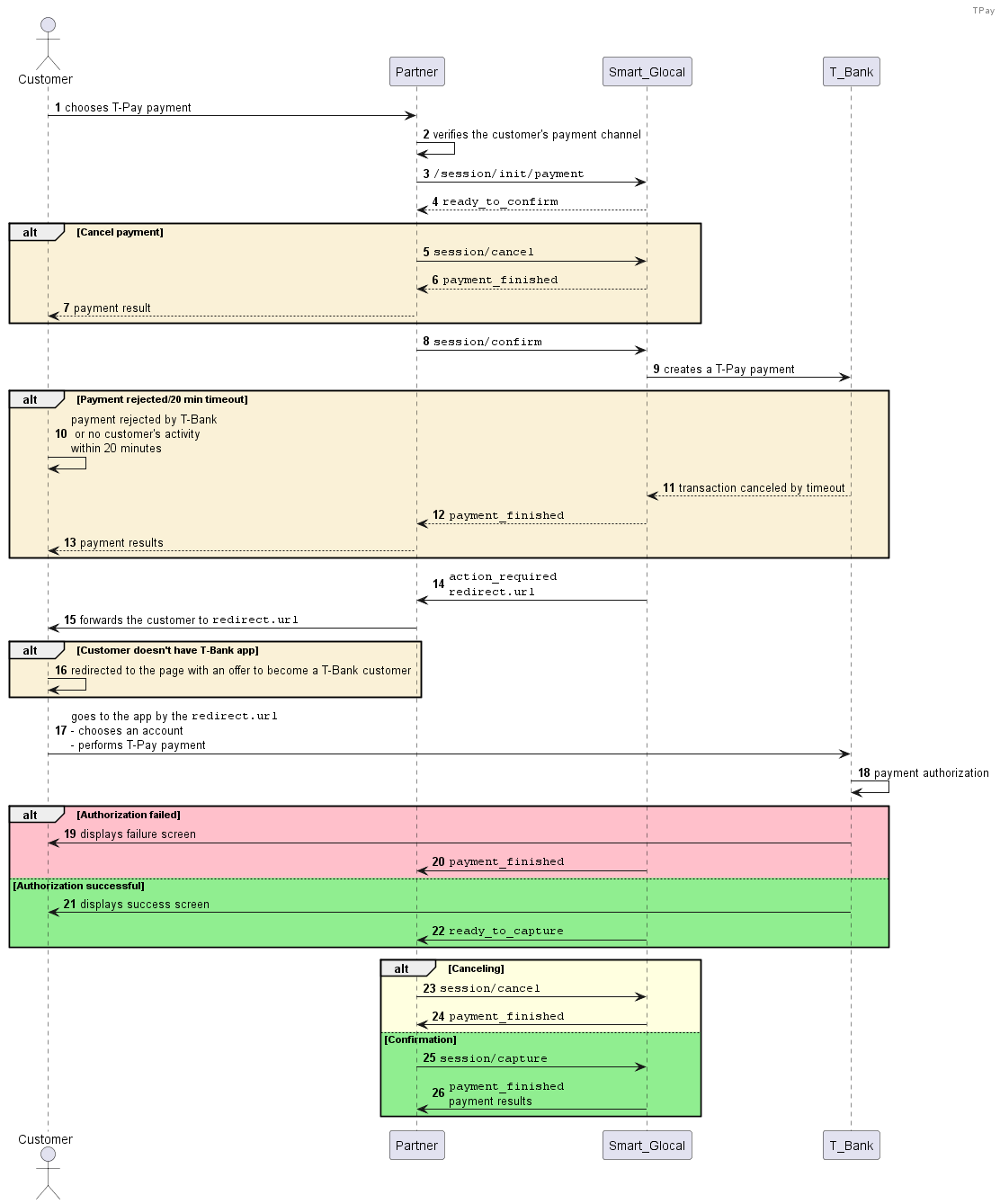
- Mobile device (mobile)
- Desktop browser (desktop)
-
Either create a session separately using the
session/createmethod and then send asession/start/paymentrequest, or create a session along with the payment using thesession/init/paymentmethod. Pass all the required parameters:- Pass the
tpayvalue in thetypeparameter of theinternet_bankingobject. - Pass the
mobilevalue in thetypeparameter of theplatform_detailsobject. Specify one of the acceptable values in theosandbrowserparameters.
Request example
curl -X POST \
  https://demo.smart-glocal.com/api/v1/session/init/payment \
  -H 'Content-Type: application/json' \
  -H 'X-PARTNER-PROJECT: your_project_name' \
  -H 'X-PARTNER-SIGN: signature' \
  -d '{
    "payment_details": {
      "type": "internet_banking",
      "internet_banking": {
        "type": "tpay"
      }
    },
    "amount_details": {
      "amount": 1000700,
      "currency": "RUB"
    },
    "customer": {
      "reference": "lucky"
    },
    "payment_options": {
      "platform_details": {
        "type": "mobile",
        "os": "ios",
        "browser": "chrome"
      }
    }
  }'
Response example
{
  "status": "ok",
  "session": {
    "id": "ps_3813062",
    "status": "in_progress",
    "created_at": "2025-09-05T07:14:28.236854Z",
    "updated_at": "2025-09-05T07:14:28.298522Z",
    "acquiring_payments": [{
      "id": "pm_2769418",
      "status": "in_progress",
      "created_at": "2025-09-05T07:14:28.310910Z",
      "customer": {
        "reference": "lucky"
      },
      "payment_details": {
        "type": "internet_banking",
        "internet_banking": {
          "type": "tpay"
        }
      },
      "amount_details": {
        "amount": 1000700,
        "currency": "RUB"
      },
      "amounts": {}
    }]
  }
} - Pass the
-
Wait for a
ready_to_confirmwebhook saying Smart Glocal is ready to process the payment and is waiting for your confirmation. -
Confirm your payment by sending a
session/confirmrequest, or cancel it sending asession/cancelrequest. -
Smart Glocal will send you an
action_requiredwebhook containing a URL withinredirect.urlto forward the customer to the T-Bank mobile application.Webhook example
{
  "type": "action_required",
  "session": {
    "id": "ps_3813062",
    "status": "in_progress",
    "created_at": "2025-09-05T07:49:12.513214Z",
    "updated_at": "2025-09-05T07:49:24.628403Z",
    "acquiring_payments": [{
      "id": "pm_2769418",
      "status": "pending",
      "created_at": "2025-09-05T07:49:12.605322Z",
      "customer": {
        "reference": "lucky"
      },
      "payment_details": {
        "type": "internet_banking",
        "internet_banking": {
          "type": "tpay"
        }
      },
      "amount_details": {
        "amount": 1000700,
        "currency": "RUB"
      },
      "amounts": {},
      "customer_interaction": {
        "type": "redirect",
        "redirect": {
          "url": "https://o.tbank.ru/tpay/3000000000000021275",
          "base_url": "https://o.tbank.ru/tpay/3000000000000021275",
          "method": "GET",
          "params": {}
        }
      }
    }],
    "actions": {
      "confirm": "2025-09-05T07:49:24.148058Z"
    }
  }
}' -
Forward the customer by the link passed within the
redirect.urlparameter to the T-Bank mobile application. Wait til the customer approves or cancels the payment. -
Wait for a
ready_to_capturewebhook and capture the amount that is on hold in full or partially (session/capture), or decline the payment (session/cancel).Skip this step if you do not have delayed capture payments enabled. In this case, the hold and capture will be made automatically.
-
Wait for a
payment_finishedwebhook containing the payment result from Smart Glocal. Thesucceededstatus indicates a successful payment.
-
Either create a session separately using the
session/createmethod and then send asession/start/paymentrequest, or create a session along with the payment using thesession/init/paymentmethod. Pass all the required parameters:- Pass the
tpayvalue in thetypeparameter of theinternet_bankingobject. - Pass the
desktopvalue in thetypeparameter of theplatform_detailsobject. Specify one of the acceptable values in theosandbrowserparameters.
Request example
curl -X POST \
  https://demo.smart-glocal.com/api/v1/session/init/payment \
  -H 'Content-Type: application/json' \
  -H 'X-PARTNER-PROJECT: your_project_name' \
  -H 'X-PARTNER-SIGN: signature' \
  -d '{
    "payment_details": {
      "type": "internet_banking",
      "internet_banking": {
        "type": "tpay"
      }
    },
    "amount_details": {
      "amount": 1000700,
      "currency": "RUB"
    },
    "customer": {
      "reference": "lucky"
    },
    "payment_options": {
      "platform_details": {
        "type": "desktop",
        "os": "windows",
        "browser": "chrome"
      }
    }
  }'
Response example
 {
   "status": "ok",
   "session": {
     "id": "ps_3813062",
     "status": "in_progress",
     "created_at": "2025-09-05T07:14:28.236854Z",
     "updated_at": "2025-09-05T07:14:28.298522Z",
     "acquiring_payments": [{
       "id": "pm_2769418",
       "status": "in_progress",
       "created_at": "2025-09-05T07:14:28.310910Z",
       "customer": {
         "reference": "lucky"
       },
       "payment_details": {
         "type": "internet_banking",
         "internet_banking": {
           "type": "tpay"
         }
       },
       "amount_details": {
         "amount": 1000700,
         "currency": "RUB"
       },
       "amounts": {}
     }]
   }
} - Pass the
-
Wait for a
ready_to_confirmwebhook saying Smart Glocal is ready to process the payment and is waiting for your confirmation. -
Confirm your payment by sending a
session/confirmrequest, or cancel the payment sending asession/cancelrequest. -
Smart Glocal will send you an
action_requiredwebhook containing a URL for a QR code withinredirect.url. Generate and display the QR code to the payer on your own.Webhook example
curl -X POST \
  https://partner.ru \
  -H 'content-type: application/json' \
  -H 'X-PARTNER-SIGN: signature' \
  -d '{
    "type": "action_required",
    "session": {
      "id": "ps_3813062",
      "status": "in_progress",
      "created_at": "2025-09-05T07:49:12.513214Z",
      "updated_at": "2025-09-05T07:49:24.628403Z",
      "acquiring_payments": [{
        "id": "pm_2769418",
        "status": "pending",
        "created_at": "2025-09-05T07:49:12.605322Z",
        "customer": {
          "reference": "lucky"
        },
        "payment_details": {
          "type": "internet_banking",
          "internet_banking": {
            "type": "tpay"
          }
        },
        "amount_details": {
          "amount": 1000700,
          "currency": "RUB"
        },
        "amounts": {},
        "customer_interaction": {
          "type": "redirect",
          "redirect": {
            "url": "https://www.tinkoff.ru/tpay/3000000000000021275",
            "base_url": "https://www.tinkoff.ru/tpay/3000000000000021275",
            "method": "GET",
            "params": {}
          }
        }
      }],
      "actions": {
        "confirm": "2025-09-05T07:49:24.148058Z"
      }
    }
}' -
Display the link passed within the
redirect.urlparameter as a QR code. Wait until the customer approves or cancels the payment. -
Wait for a
ready_to_capturewebhook and capture the amount that is on hold in full or partially (session/capture), or decline the payment (session/cancel).Skip this step if you do not have delayed capture payments enabled. In this case, the hold and capture will be made automatically.
-
Wait for a
payment_finishedwebhook containing the payment result from Smart Glocal. Thesucceededstatus indicates a successful payment.
Recurring payments
To perform MIT recurring payments or CIT recurring payments via T-Pay:
-
Get a token by sending
recurrent=true(in thepayment_optionsobject) in the request. If the payment is successful, you will get a token in thepayment_finishedwebhook in therecurrent.tokenparameter.Request example
curl -X POST \
  https://proxy.bank131.ru/api/v1/session/init/payment \
  -H 'Content-Type: application/json' \
  -H 'X-PARTNER-PROJECT: your_project_name' \
  -H 'X-PARTNER-SIGN: signature' \
  -d '{
    "payment_details": {
      "type": "internet_banking",
      "internet_banking": {
        "type": "tpay"
      }
    },
    "amount_details": {
      "amount": 900000,
      "currency": "RUB"
    },
    "customer": {
      "reference": "lucky"
    },
    "payment_options": {
      "platform_details": {
        "recurrent": true,
        "type": "mobile",
        "os": "ios",
        "browser": "chrome"
      }
    }
}' -
Use the token to make recurring payments.
Examples
- MIT recurring payment
- CIT recurring payment
- Request example
- Response example
curl -X POST \
  https://proxy.bank131.ru/api/v1/session/init/payment \
  -H 'Content-Type: application/json' \
  -H 'X-PARTNER-PROJECT: your_project_name' \
  -H 'X-PARTNER-SIGN: signature' \
  -d '{
    "payment_details": {
      "type": "recurrent",
      "recurrent": {
        "token": "e9876f32bcd947f79c324cf2da5726304a894f6ae2037de7705fdb3e0a134d39",
        "initiator":"merchant"
      }
    },
    "amount_details": {
      "amount": 900000,
      "currency": "RUB"
    },
    "customer": {
      "reference": "lucky"
    },
    "payment_options": {
      "platform_details": {
        "type": "mobile",
        "os": "android",
        "browser": "chrome"
      }
    }
  }'
{
"status": "ok",
"session": {
"id": "ps_3812845",
"status": "in_progress",
"created_at": "2025-09-03T11:04:27.322539Z",
"updated_at": "2025-09-03T11:04:27.381848Z",
"acquiring_payments": [{
"id": "pm_2769255",
"status": "in_progress",
"created_at": "2025-09-03T11:04:27.394705Z",
"customer": {
"reference": "lucky"
},
"payment_details": {
"type": "internet_banking",
"internet_banking": {
"type": "tpay"
}
},
"amount_details": {
"amount": 900000,
"currency": "RUB"
},
"amounts": {}
}]
}
}- Request example
- Response example
curl -X POST \
  https://proxy.bank131.ru/api/v1/session/init/payment \
  -H 'Content-Type: application/json' \
  -H 'X-PARTNER-PROJECT: your_project_name' \
  -H 'X-PARTNER-SIGN: signature' \
  -d '{
    "payment_details": {
      "type": "recurrent",
      "recurrent": {
        "token": "e9876f32bcd947f79c324cf2da5726304a894f6ae2037de7705fdb3e0a134d39",
        "initiator":"client"
      }
    },
    "amount_details": {
      "amount": 900000,
      "currency": "RUB"
    },
    "customer": {
      "reference": "lucky"
    },
    "payment_options": {
      "platform_details": {
        "type": "mobile",
        "os": "ios",
        "browser": "chrome"
      }
    }
  }'
{
"status": "ok",
"session": {
"id": "ps_3812844",
"status": "in_progress",
"created_at": "2025-09-03T11:04:27.322539Z",
"updated_at": "2025-09-03T11:04:27.381848Z",
"acquiring_payments": [{
"id": "pm_2769254",
"status": "in_progress",
"created_at": "2025-09-03T11:04:27.394705Z",
"customer": {
"reference": "lucky"
},
"payment_details": {
"type": "internet_banking",
"internet_banking": {
"type": "tpay"
}
},
"amount_details": {
"amount": 900000,
"currency": "RUB"
},
"amounts": {}
}]
}
}